 Magyar
 English
The cpKamra dashboard and WHM plugin
A guide for hosting providers and sysadmins who run cpKamra: the pages of the central dashboard and the WHM plugin, and the most common tasks.
Installation has its own page, and the cPanel users’ interface is described under Restoring in cPanel.
The dashboard
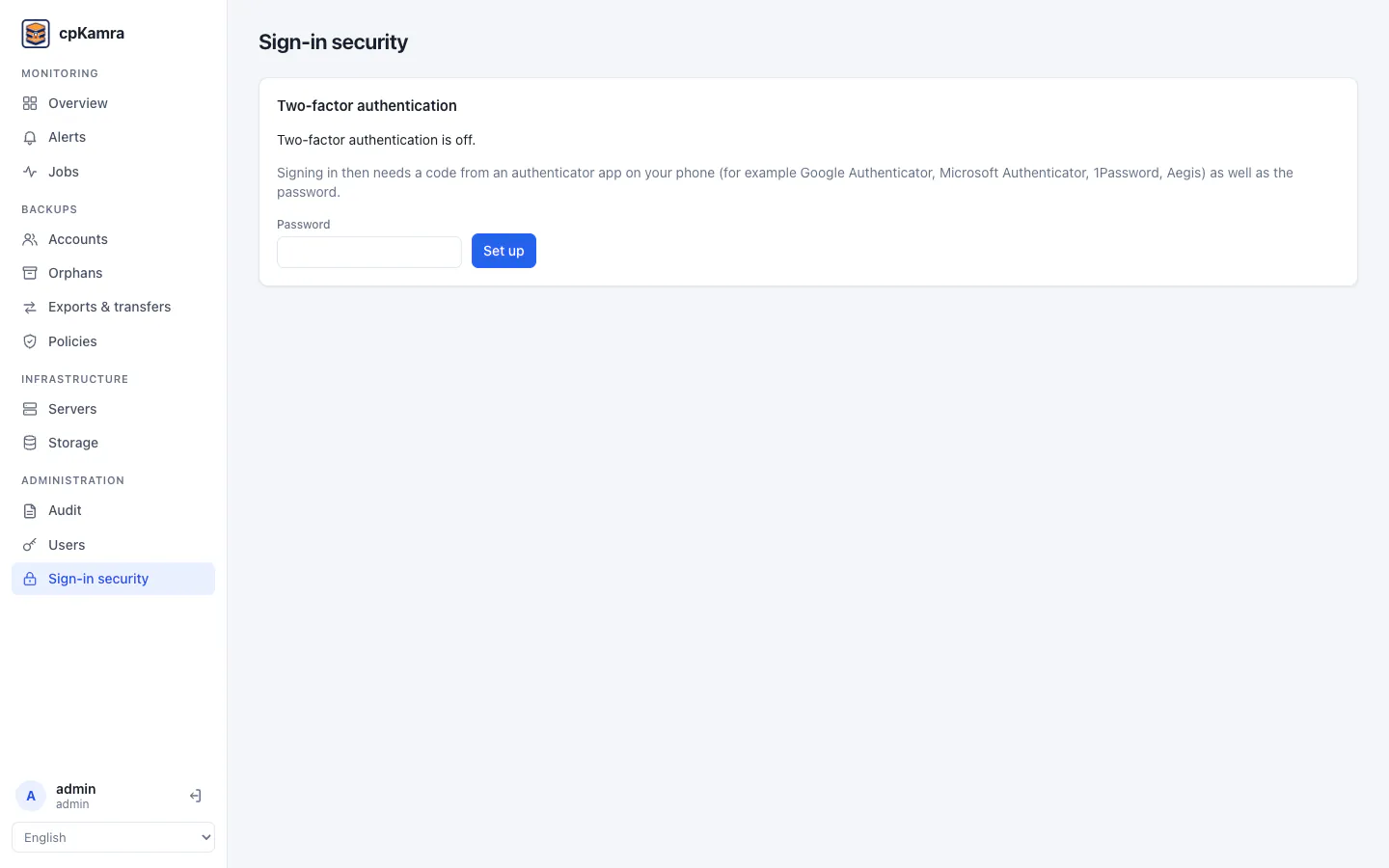
The dashboard runs on the controller, behind a TLS reverse proxy. Sign in with the user created at installation. Every user can turn on two-factor sign-in on the Sign-in security page; we recommend it for admins. The language (Hungarian, English, Slovenian) can be chosen under the login form and at the bottom of the sidebar.
Overview
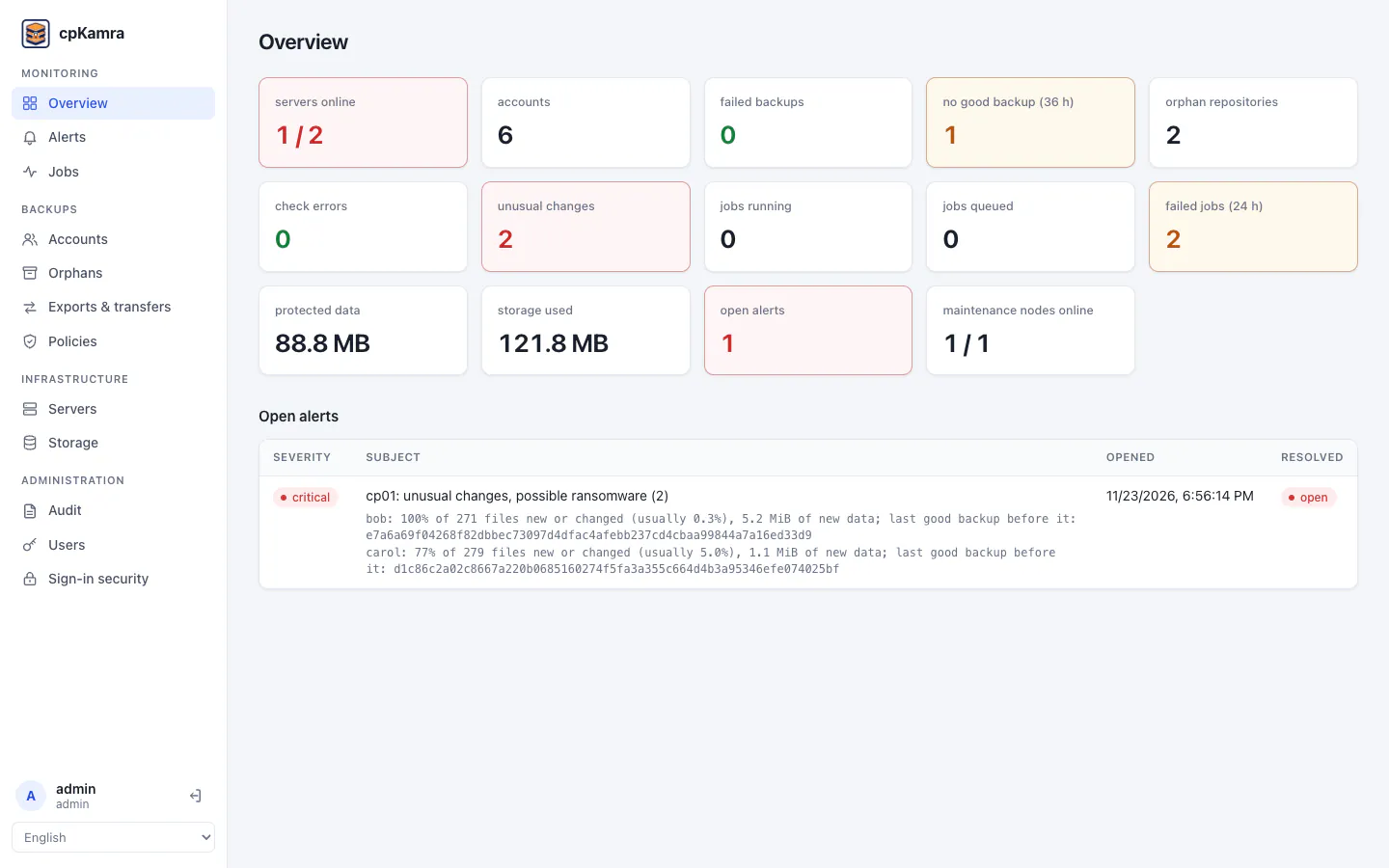
The tiles are coloured when something needs attention:
| Tile | Look at it when |
|---|---|
| servers online | a server has not reported for a while: network, certificate, or cpkamrad stopped |
| failed backups, failed jobs | open the Jobs or Accounts page (problems only) for the error |
| no good backup (36 h) | an account has had no successful files backup for a day and a half |
| orphan repositories | backups of accounts that are no longer on their server |
| check errors | a repository check on the storage server found a problem |
| unusual changes | a backup changed far more files than the account usually does: possible ransomware or mass damage |
| open alerts | listed below the tiles and on the Alerts page |
Alerts
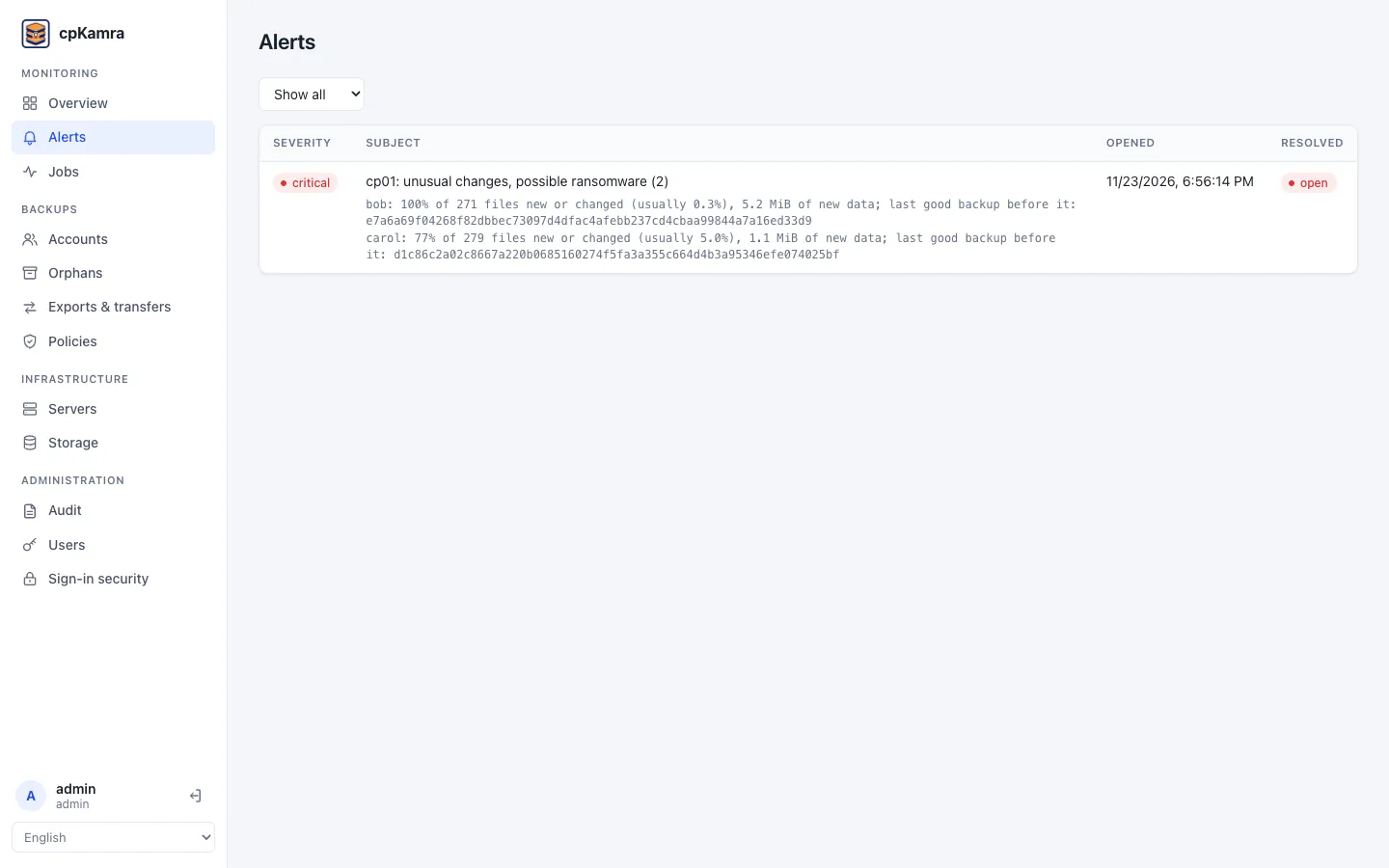
Alerts open and close by themselves when the problem goes away (a server back online, a backup OK again). Open ones also go to the webhook and email address, if you have set these. An unusual changes alert stays open until an admin acknowledges the account on the Accounts page. If a hold is requested for this case in the agent’s settings, nothing is deleted from the account’s backups until then, so the retention rule can’t remove the last good backup from before the damage.
Servers
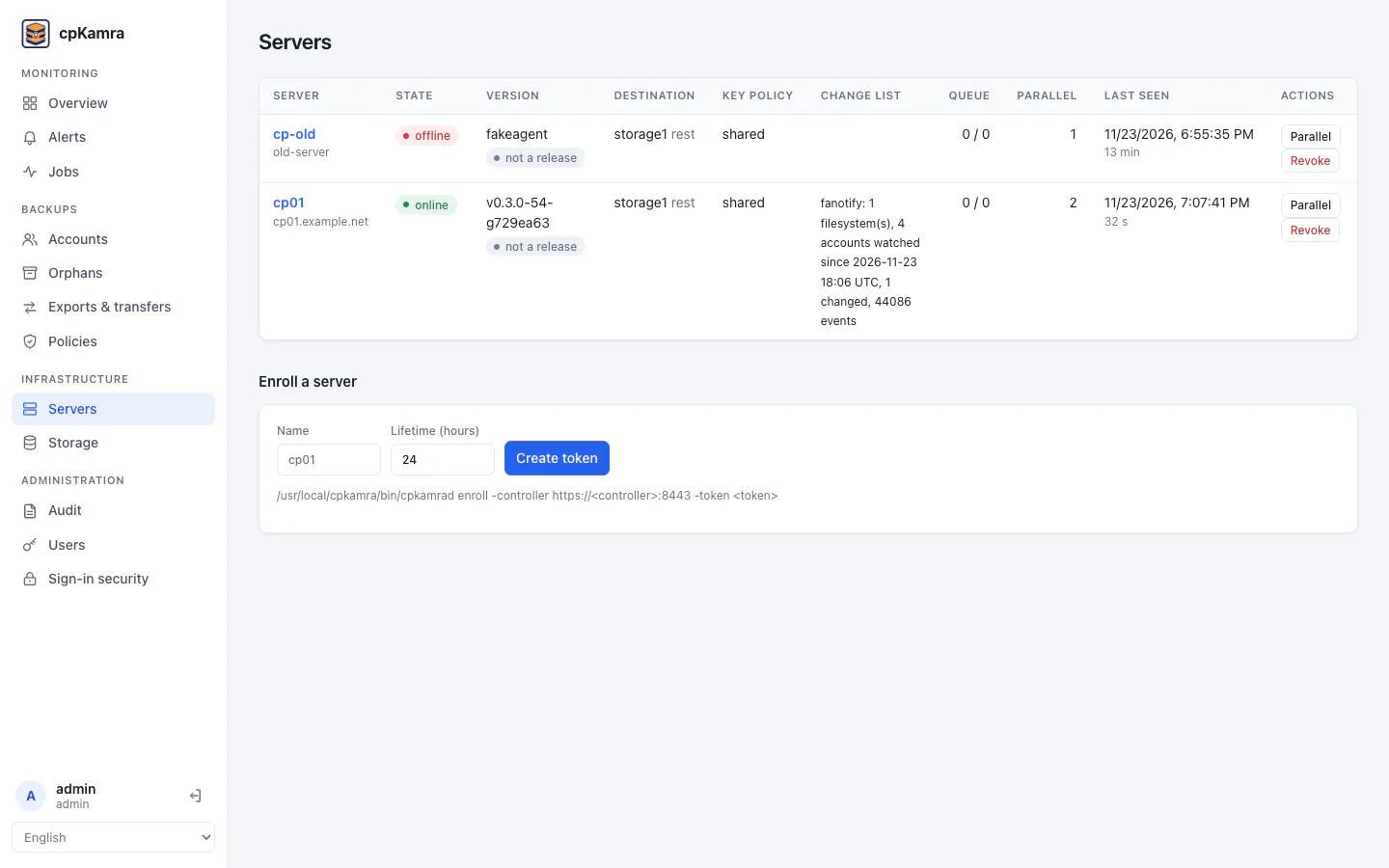
Every cPanel server with its version, destination, key policy, job queue and last contact. Enroll a server creates the one-time token a new server needs. A badge shows when a server runs a different version from the controller. Revoke cuts a server off: its certificate stops working at once, and it can come back only with a new token.
Accounts
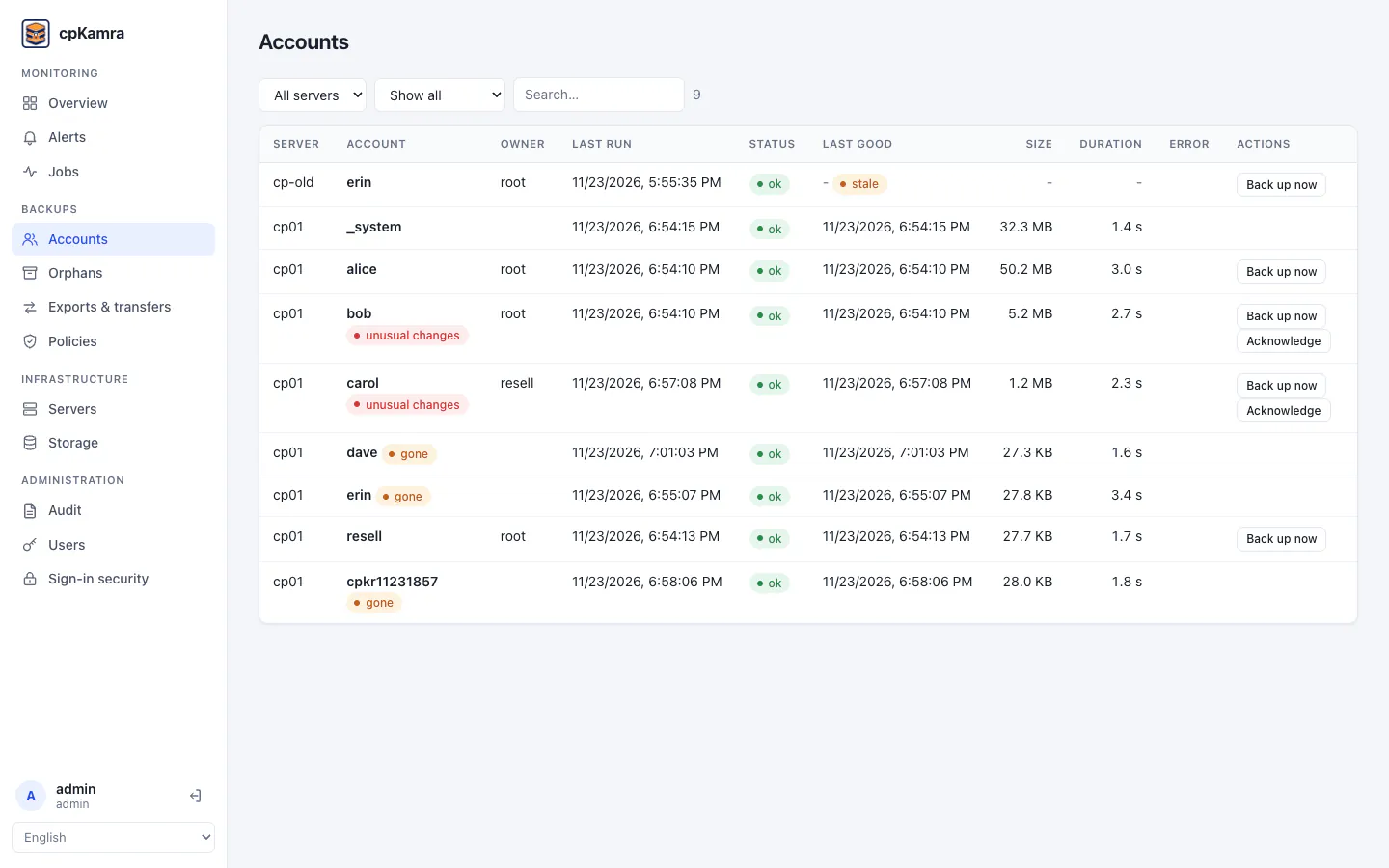
Every account of every server: the last run, its result, the last good backup, the size and the duration. You can filter by server, show problems only, or search. Back up now queues a backup of one account; the server picks it up within a minute.
Jobs
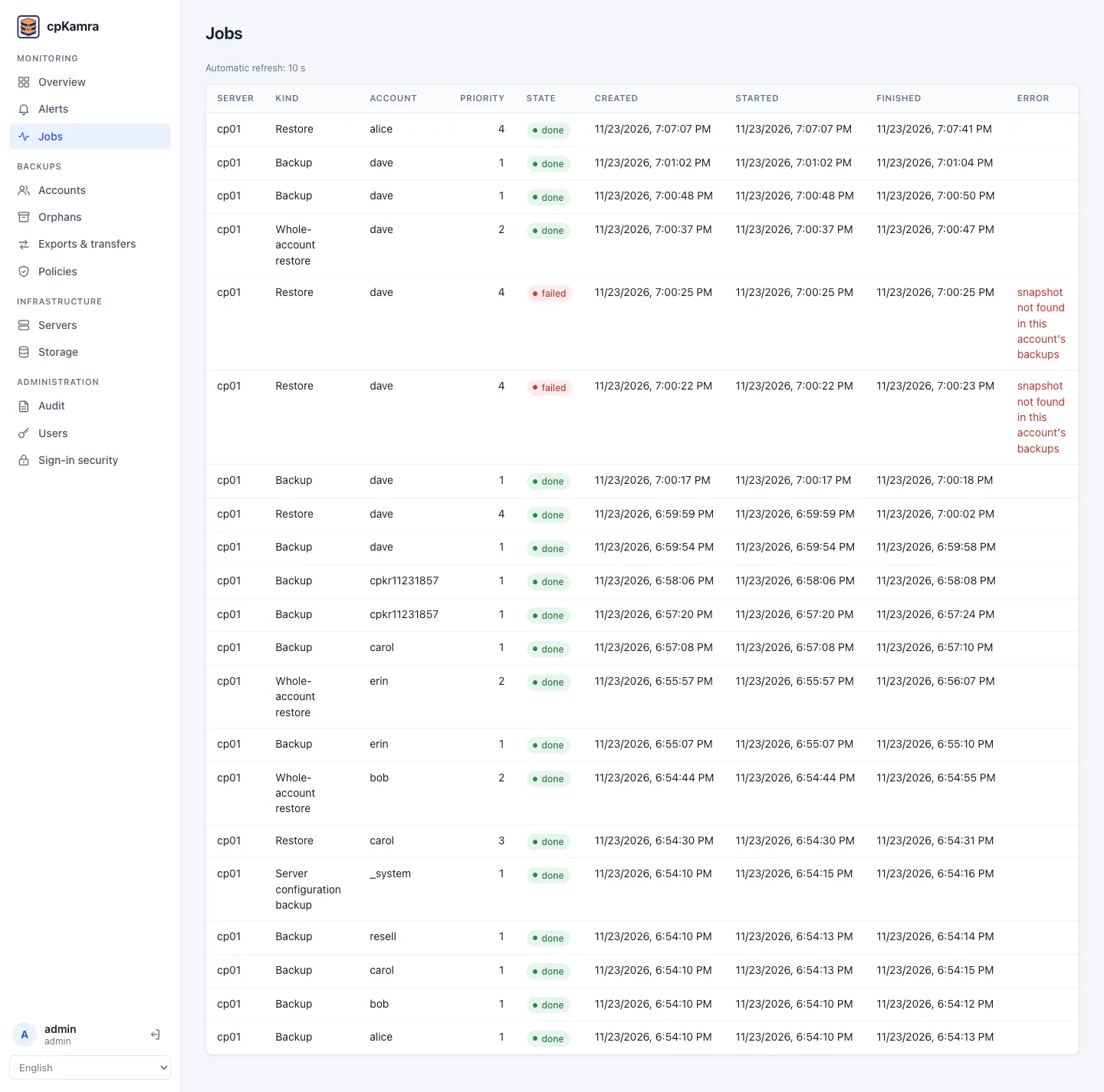
The queue across all servers and the recent jobs, with their errors. The page refreshes every 10 seconds.
Storage
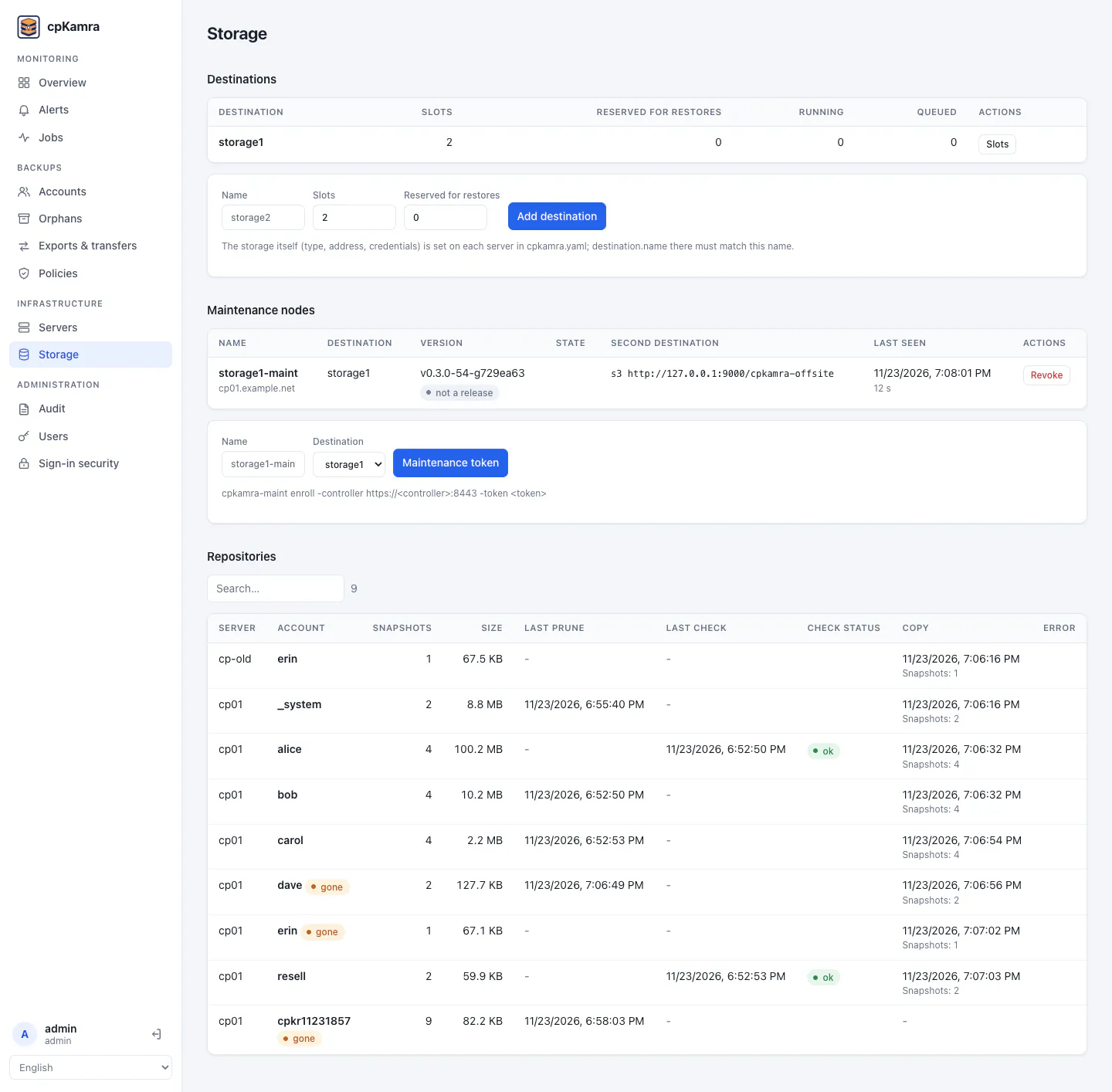
The destinations with their slots (how many jobs may run on each at once, and how many of those are kept for restores), the maintenance nodes, and every repository with its snapshots, size, last prune and last check. This is where you add a new destination and a new maintenance node.
Orphans
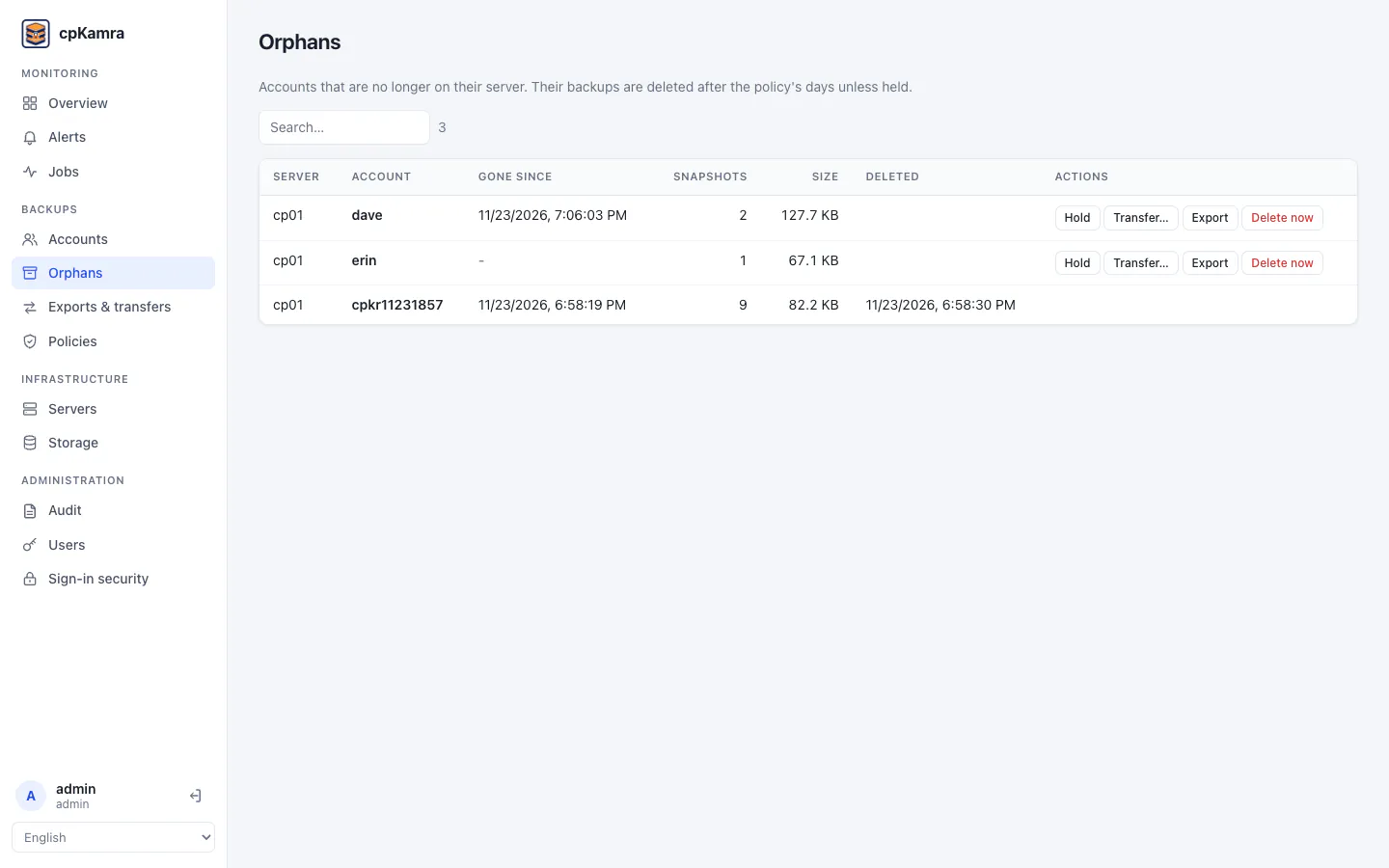
When an account is removed from its server, its backups stay: they become orphans, and they are deleted after the grace period set in the policy (30 days by default). Until then you can:
- Hold: the orphan is never deleted (a legal hold) until you release it;
- Transfer: move it to another server on the same destination, where root can restore the whole account in WHM;
- Export: export it as a restic repository with its own password, for example for a customer who leaves and asks for their data;
- Delete now: delete it at once.
Exports and transfers
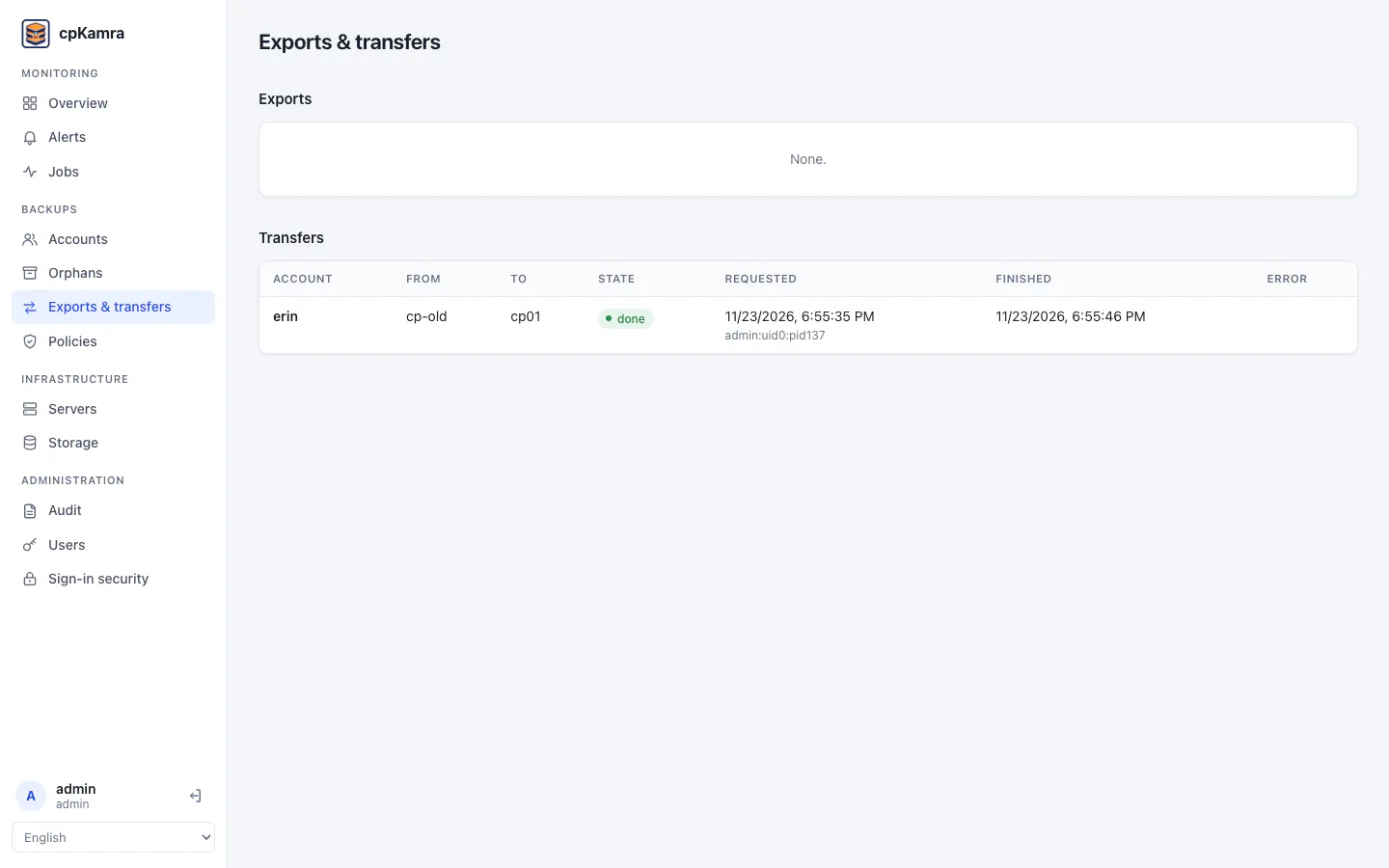
Customer exports and transfers between servers, with their state. The password of an export can be shown here; this is recorded in the audit log.
Policies
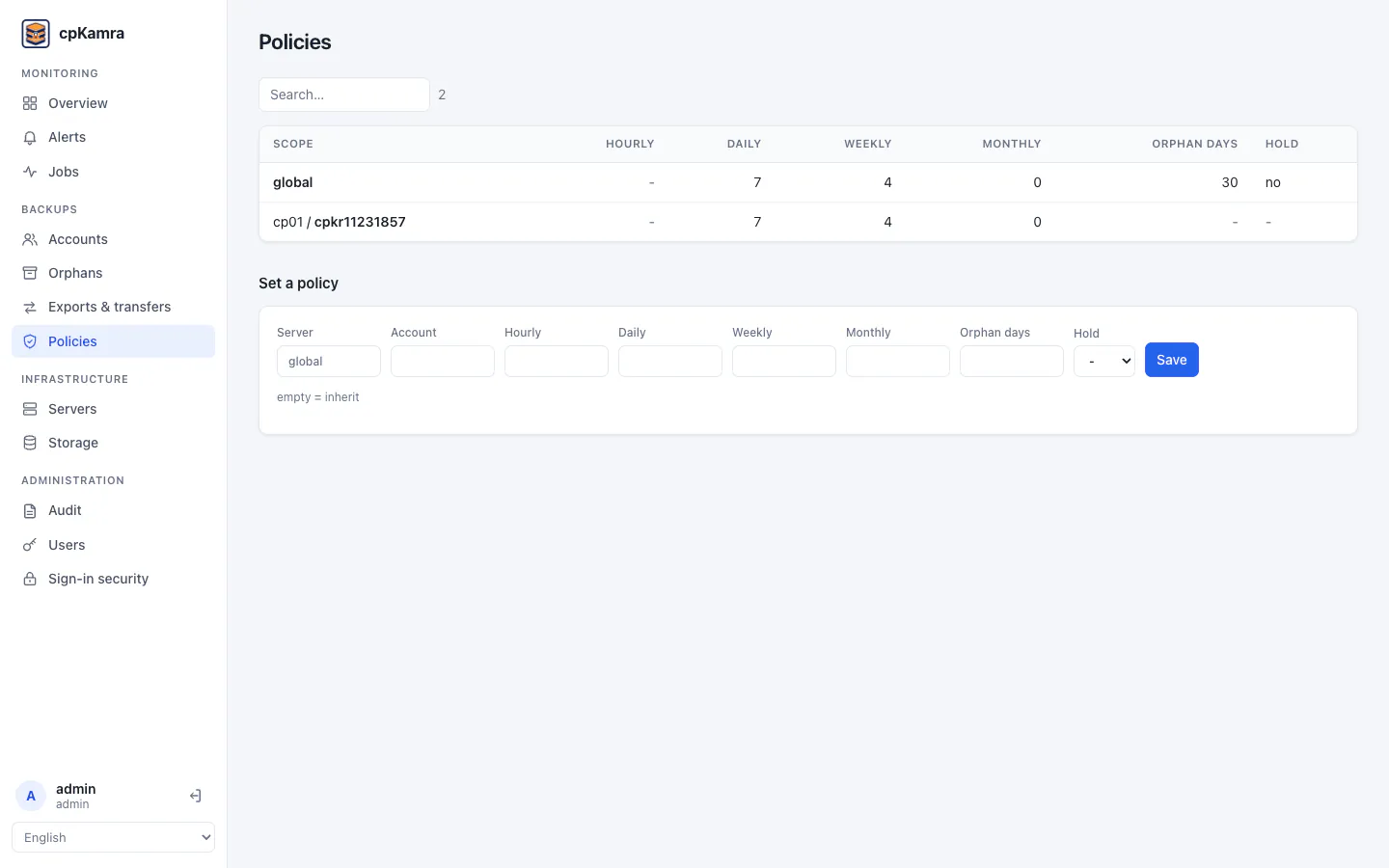
How long backups are kept: 7 daily and 4 weekly snapshots by default, and orphans for 30 days. A rule can apply to everything, to one server or to one account, for example a longer retention for a customer who pays for it. Each field can be inherited separately.
Audit, users, sign-in security
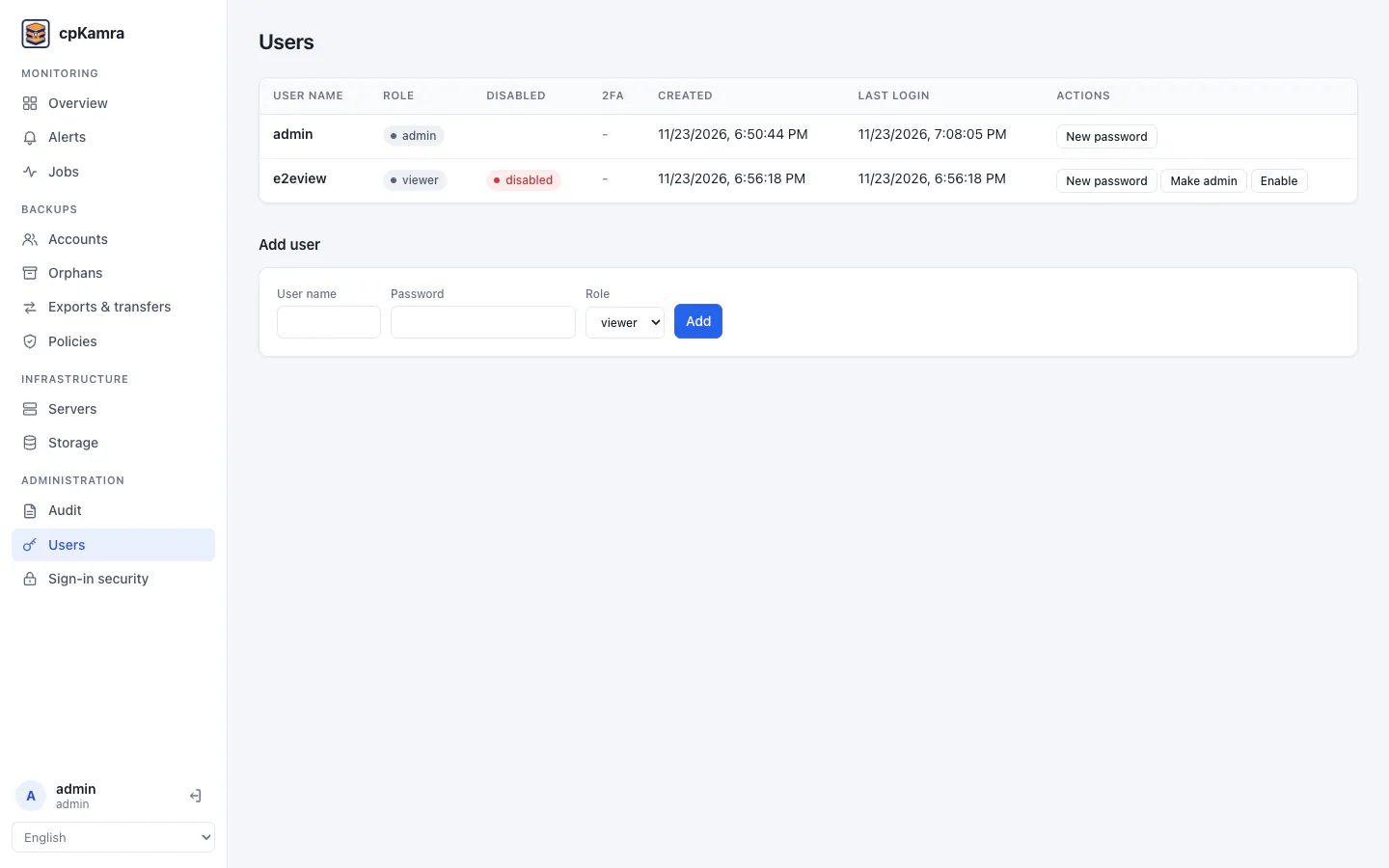
The Audit log records who did what: sign-ins, tokens, revocations, policy changes, exports, acknowledgements. On the Users page, admins can add dashboard users with the admin or viewer role, set a new password, disable a user, or reset their two-factor sign-in.
The WHM plugin
WHM → Plugins → Backup & Restore (cpkamra) shows the server’s own backups. Root sees everything; a reseller sees only its own accounts.
Overview
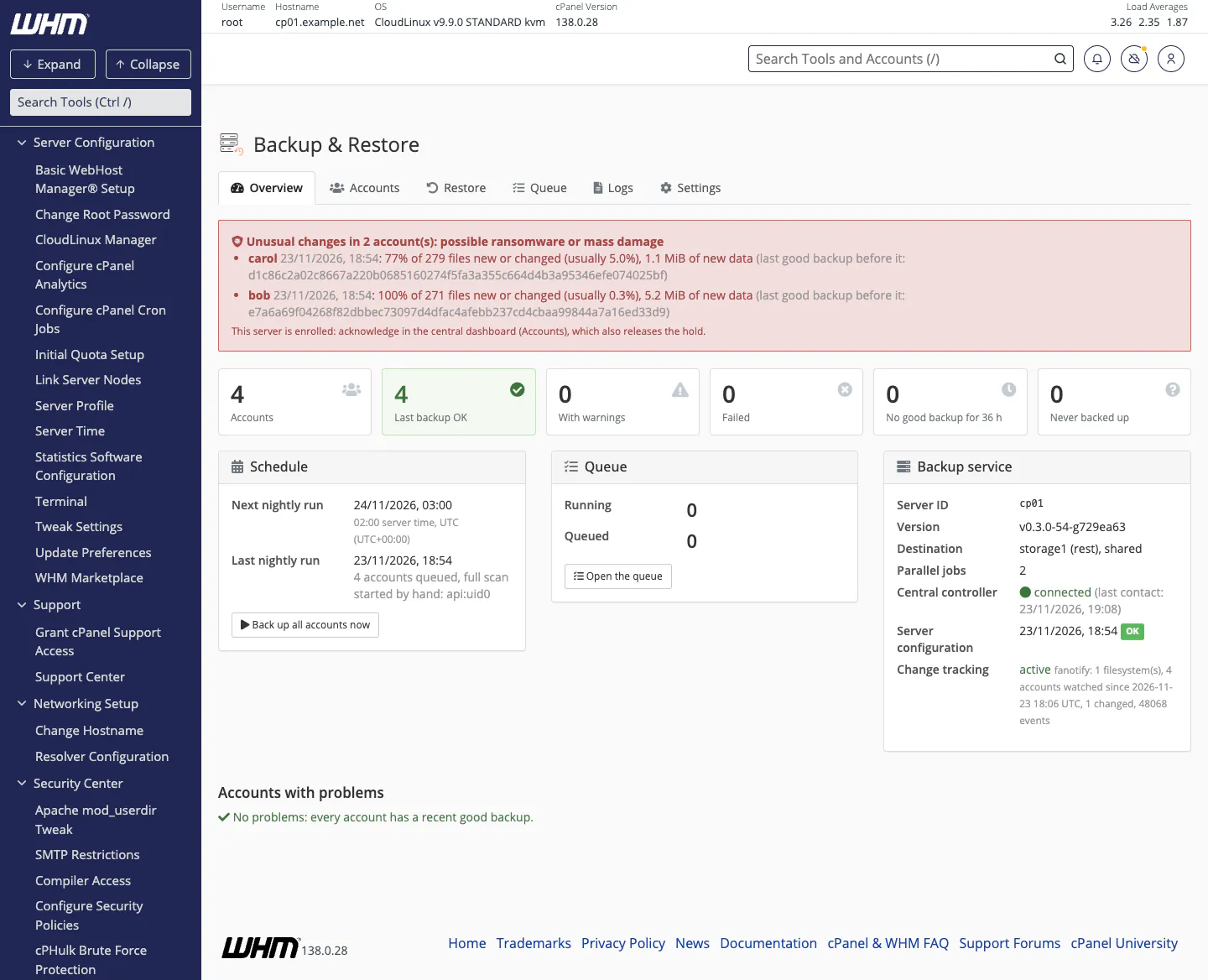
Unusual backups come first, in a red box, then the number of accounts, the next and the last nightly run, the queue and the accounts with problems. Root also sees the service: version, destination, controller connection, change tracking, and the Back up all accounts now button.
Accounts
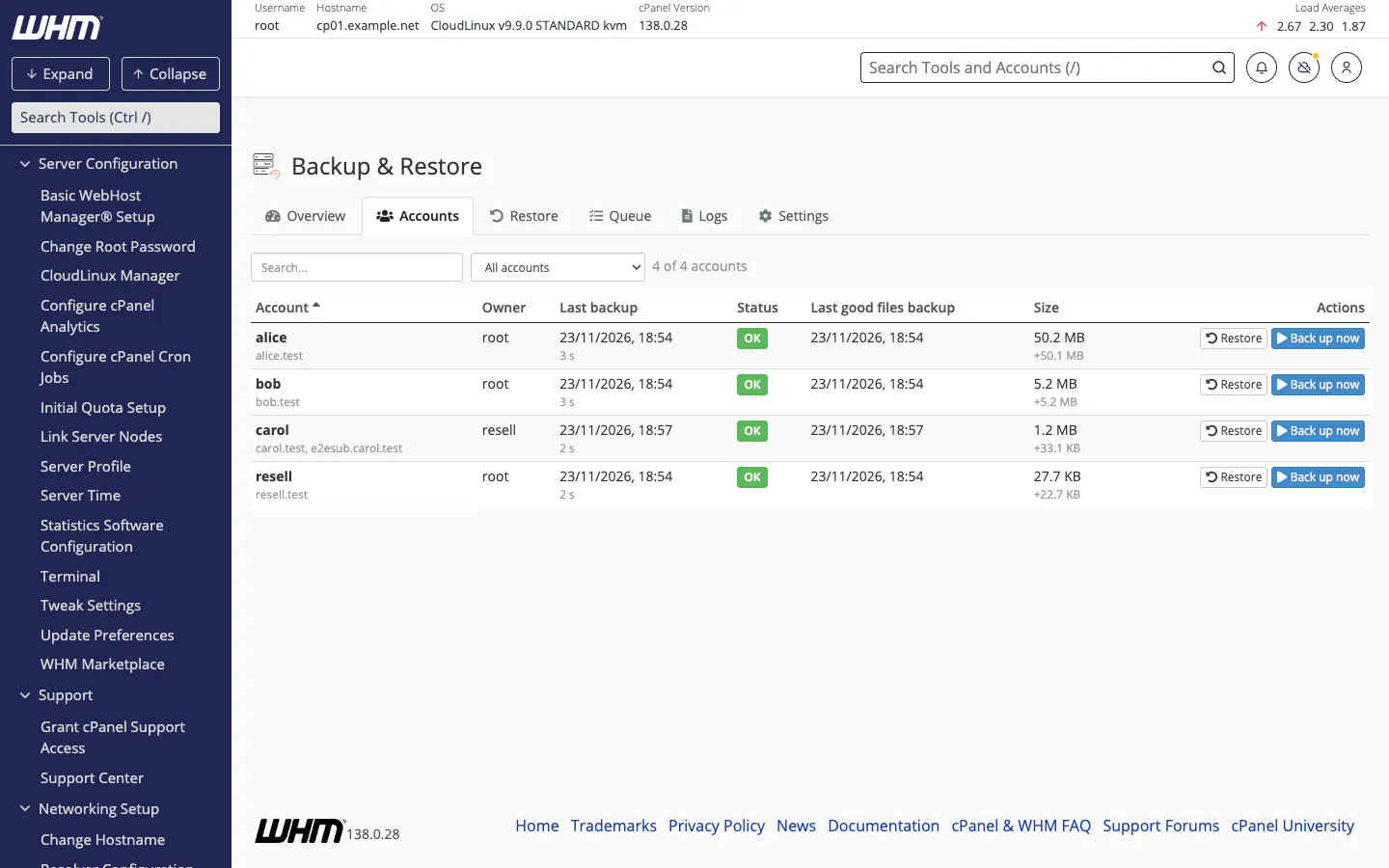
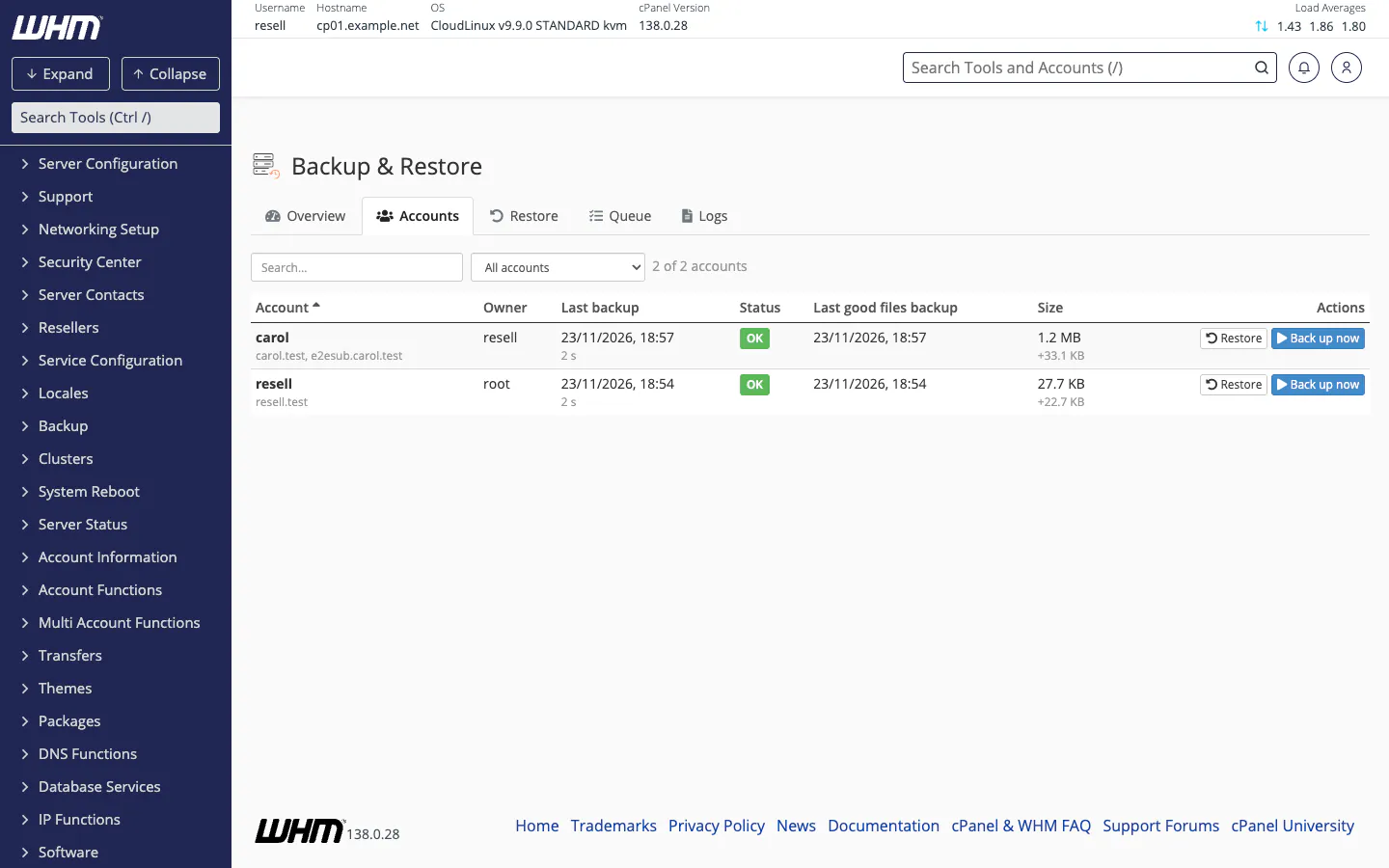
The accounts can be searched and filtered (problems only, failed, with warnings, no good backup for 36 hours, never backed up, suspended); each has Back up now and Restore.
Restore
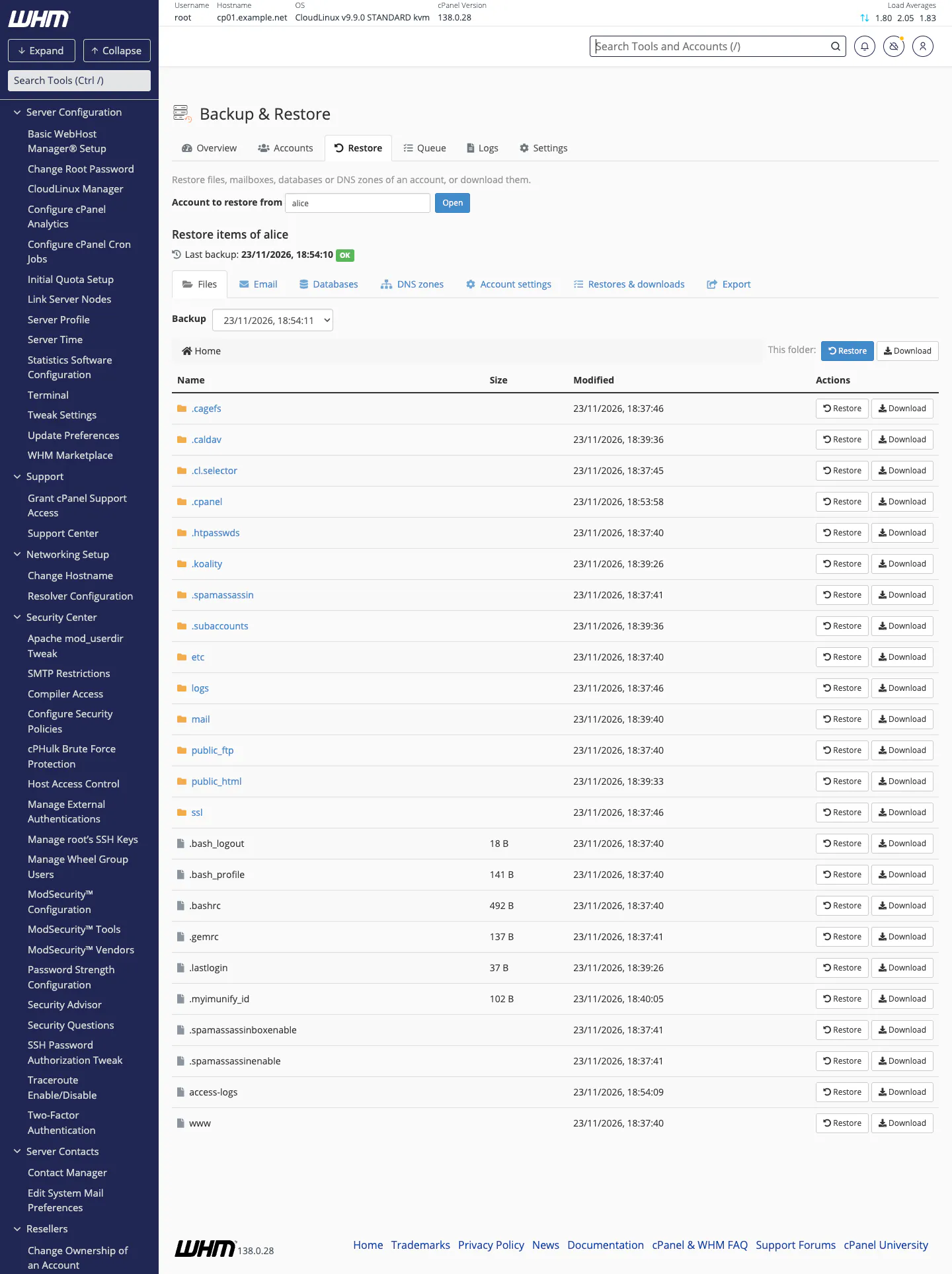
Start typing an account name, a domain or a reseller, and you get the same restore page the account’s user sees in cPanel: files, email, databases, DNS zones, account settings, downloads. Below it, root sees the list of backups of accounts that are no longer on the server, with Restore whole account: the account is rebuilt by cPanel’s own restore from the backup you choose, with its files, databases, mail, DNS and settings.
Queue and logs
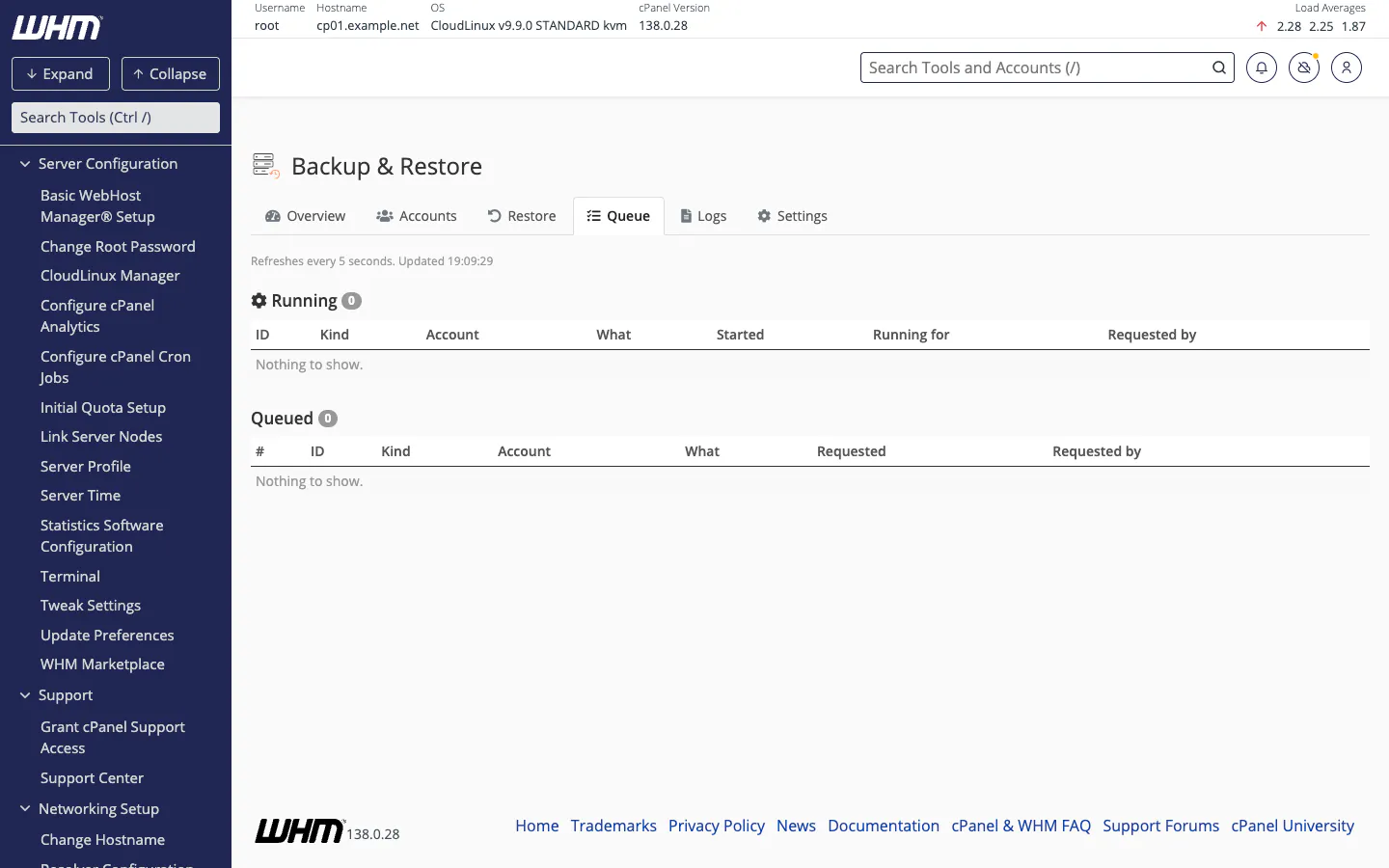
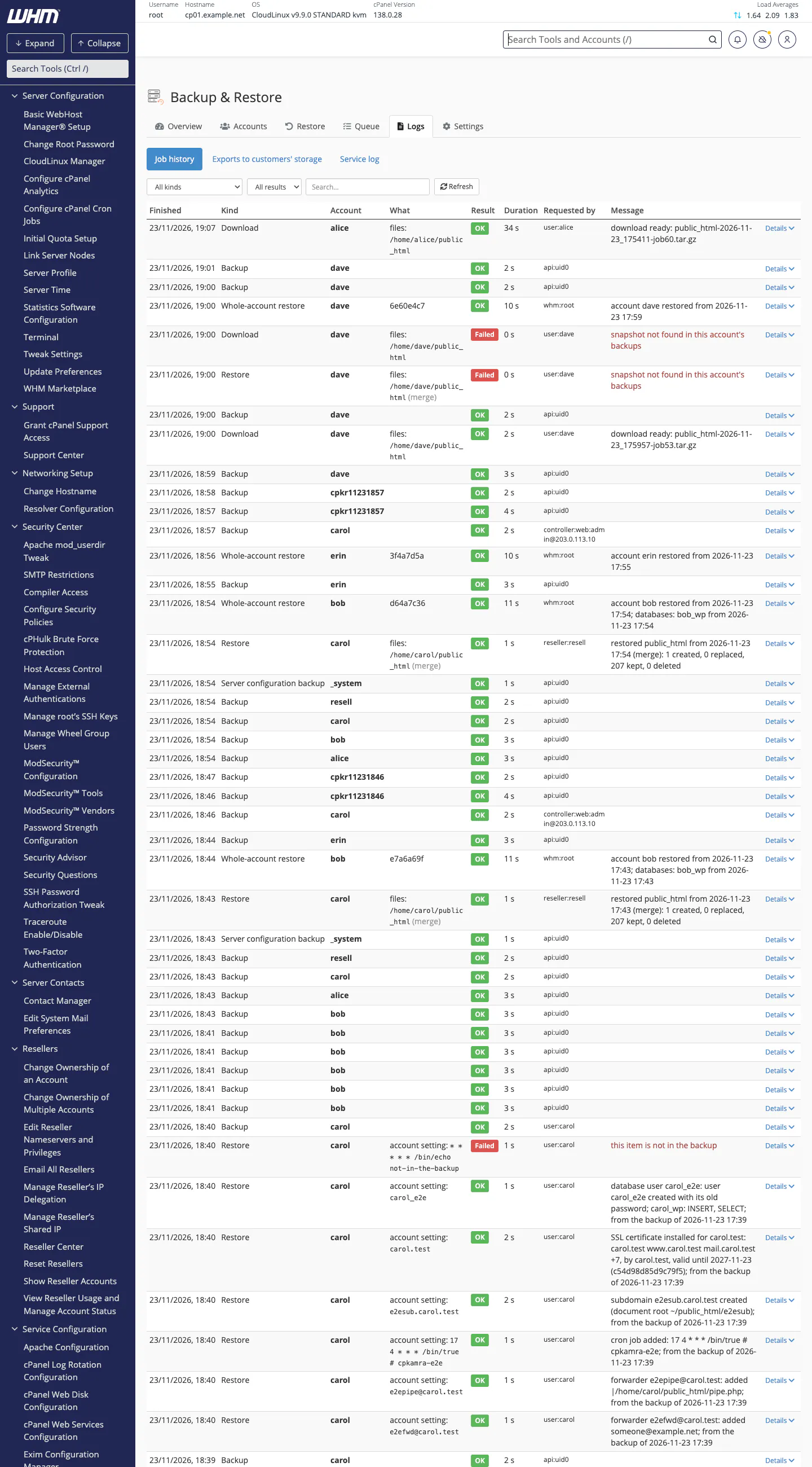
Queue shows the running and waiting jobs; root, and a reseller for its own accounts, can remove a waiting one from the queue. Logs has the job history, with the details and warnings of every part of a backup, the customers’ exports, and for root the end of the service’s log.
Settings
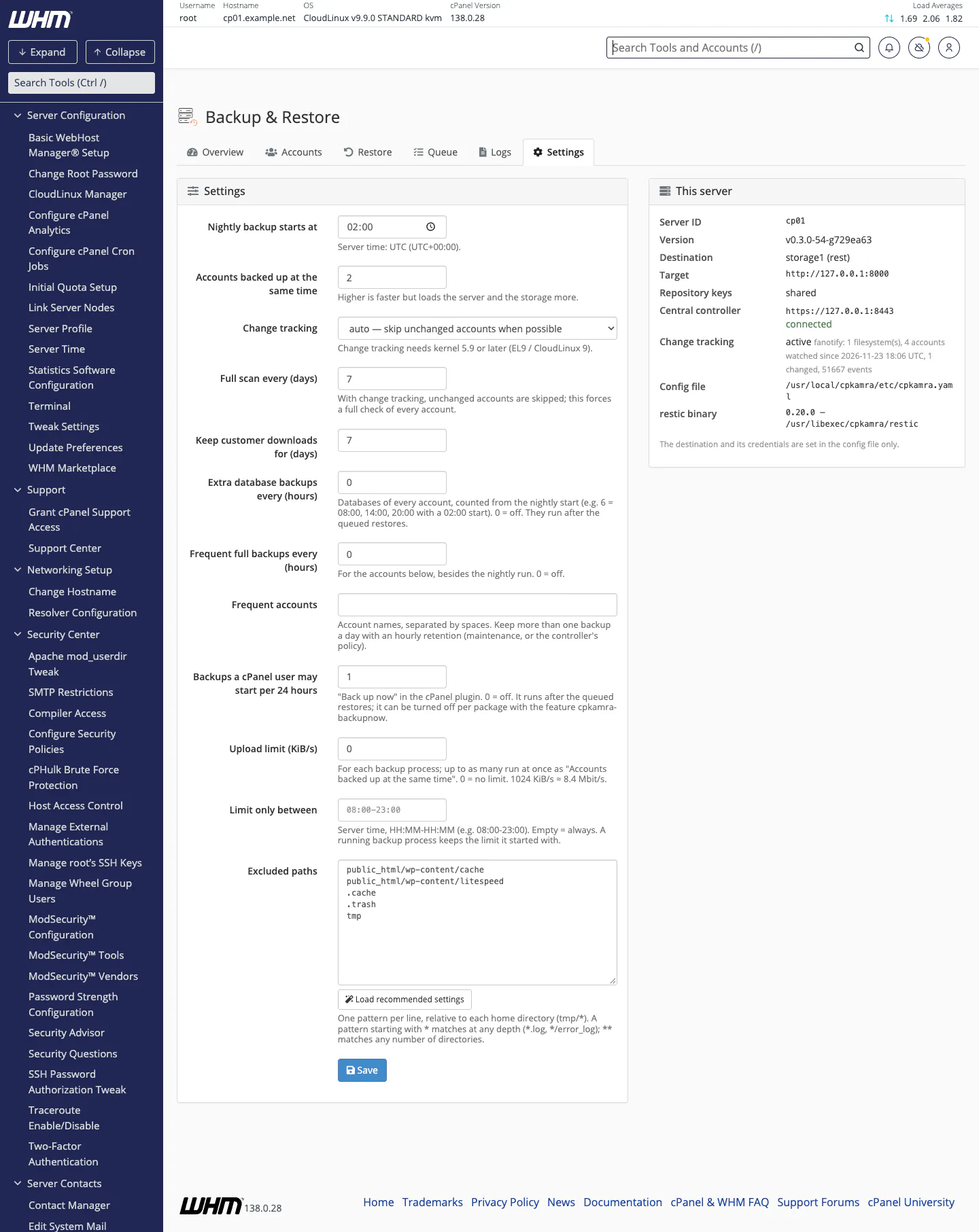
Here root sets the start of the nightly backup, how many accounts are backed up at once, change tracking, how often a full scan runs, how long downloads are kept, the extra database backups and the frequent full backups of selected accounts, how many times a user may start Back up now in 24 hours, the upload limit and the hours it applies in, and the excluded paths; Load recommended settings gives a good starting list. After saving, the service restarts gracefully: it waits until no job is running. In single-server mode the maintenance window and the retention are set here too.
Resellers
A reseller sees the same pages for its own accounts, but without the settings, the service log, the server’s details, Back up all accounts now and whole-account restore.
Everyday tasks
Giving users the cPanel plugin. WHM → Packages → Feature Manager → the feature list → Backup & Restore (cpkamra). Back up now (cpkamra) and Export to own storage (cpkamra) are on unless a feature list turns them off.
Adding a cPanel server. Create a token with Servers → Enroll a server, install the agent and register it (see the installation guide). On its first start it backs up every account at once, so choose the time well.
A backup failed. The Overview or the Accounts page (problems only) shows the error; on the server, the WHM Logs page shows the details of each part. A failed backup is retried the next night, and Back up now retries it at once.
An account was deleted by mistake. Its backups are now orphans: in WHM on the same server, Restore → backups of accounts that are no longer on the server → Restore whole account. If it has to go to another server, transfer it first on the dashboard’s Orphans page. If it may take longer than the grace period, put it on hold.
A customer leaves and asks for their data. Orphans → Export: a restic repository with its own password on the storage server, which you can hand over. While the account still exists, the customer can also export it to their own storage from cPanel.
Unusual changes alert. Look at the account: what changed, has the site been defaced or encrypted? If there was damage, restore it with Overwrite from the last good backup named in the alert, then acknowledge it on the Accounts page.
A cPanel server is lost. Its backups and keys are safe on the storage server and the controller. Install a new server and restore the server configuration backup and the accounts; the steps are in the agent reference in the wiki.
The controller is lost. Backups carry on without it. It can be restored from the offline copy of its keys and database; the steps are in the controller reference in the wiki.
Upgrading. The controller first, then the maintenance nodes, then one cPanel server, and finally the rest: see the upgrade section of the installation page and the wiki’s upgrade guide.
The full reference, with every setting, is in the project wiki.