 Magyar
 English
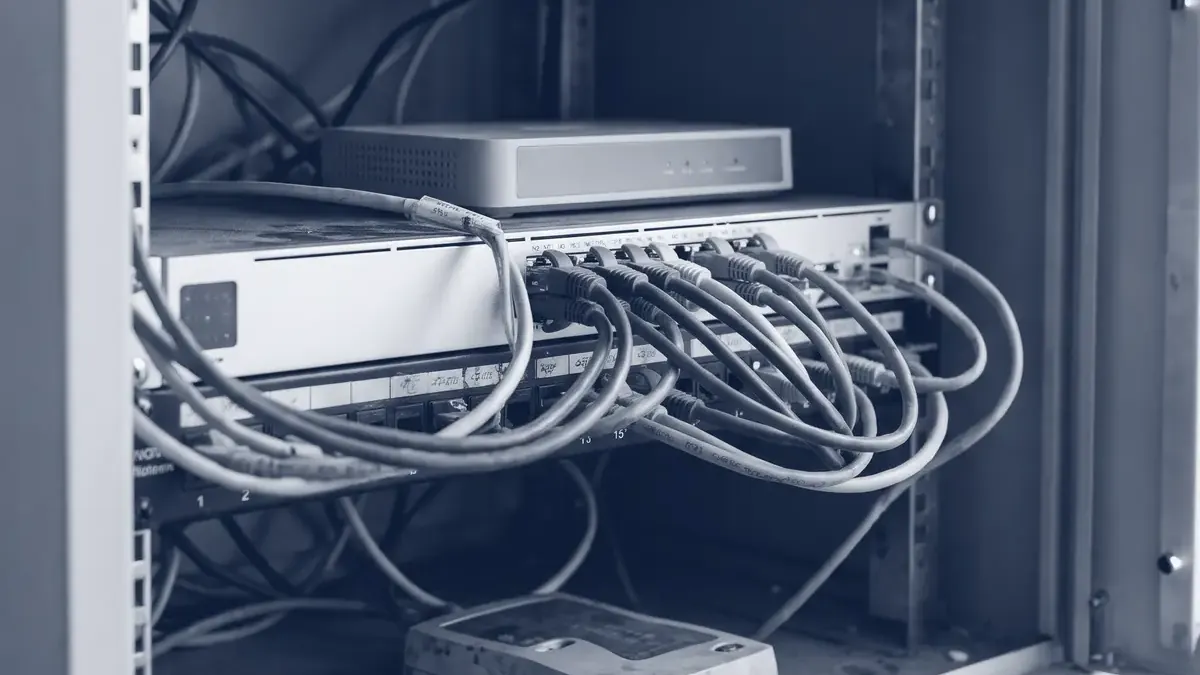
DHCP (Dynamic Host Configuration Protocol) is the service that automatically hands out IP addresses, the default gateway, DNS servers and other network settings to the devices that join a network. In practice, it means nobody has to type addresses into laptops, phones and printers by hand, and two machines never end up with the same address. In a small office this is usually done by the router; in a larger network, by a dedicated server.
Below we go through how it works, what is worth configuring, and what to check when a device doesn’t get an address.
How DHCP works: the DORA process
Assigning an address takes four messages, known as DORA from their initials. The client uses UDP port 68, and the server uses UDP port 67.
- Discover: the client, which has no address yet, asks the network with a broadcast message whether there is a DHCP server.
- Offer: the server offers a free address together with the settings.
- Request: the client signals that it accepts this offer (if several servers answered, this is how the others learn that they weren’t chosen).
- Acknowledge: the server confirms, and the client configures the address.
Lease
The address isn’t permanent but leased: the server specifies how long it can be used. Halfway through the lease time, the client tries to renew it with the same server, and at 87.5% of it, with any server. If that fails too, it releases the address when the lease expires. In an office network, 8–24 hours is the usual lease time; on a guest network, where many devices come and go, it can be shorter (1–2 hours).
What settings does DHCP provide?
Besides the address, the server also sends so-called options. The most common ones:
| Option | Number | What is it for? |
|---|---|---|
| Router (gateway) | 3 | The address of the default gateway |
| DNS servers | 6 | The servers used for name resolution |
| Domain name | 15 | The name of the local domain, for example office.example.com |
| NTP servers | 42 | Time synchronisation, important for logs and authentication |
| Lease time | 51 | How long the address is valid |
Reservation or static IP?
Servers, printers and network devices need a fixed address. There are two ways to do this:
- DHCP reservation: the server always gives the device the same address, based on its MAC address. Address assignment stays in one place, and a change of DNS server or gateway reaches the device automatically. We recommend this for printers, IP phones and cameras.
- Static address: you set it on the device itself. For infrastructure components – the router, DHCP and DNS servers, hypervisors, NAS devices, database servers – always use this, because they have to work even when the DHCP server is unavailable.
Put the static addresses outside the DHCP range (pool), for example in the .1–.49 range, and the dynamic addresses in the .100–.199 range. That way the server can never hand out an address that was set manually.
Typical small-office setups
Router. In most offices the router (MikroTik, Ubiquiti, pfSense, OPNsense, etc.) is the DHCP server. Up to a few dozen devices this is perfectly fine; just document the reservations.
Kea. On a Linux server, Kea is the modern choice. ISC ended maintenance of the old ISC DHCP server (dhcpd, isc-dhcp-server), which was the default for a long time, at the end of 2022; the developer recommends Kea as its successor. Ubuntu 24.04 also supports Kea, as we wrote in our article on the server edition of Ubuntu 24.04. A simple kea-dhcp4.conf:
{
  "Dhcp4": {
    "interfaces-config": { "interfaces": [ "eth1" ] },
    "lease-database": {
      "type": "memfile", "persist": true,
      "name": "/var/lib/kea/kea-leases4.csv"
    },
    "valid-lifetime": 43200,
    "subnet4": [ {
      "id": 1,
      "subnet": "192.168.10.0/24",
      "pools": [ { "pool": "192.168.10.100 - 192.168.10.199" } ],
      "option-data": [
        { "name": "routers", "data": "192.168.10.1" },
        { "name": "domain-name-servers", "data": "192.168.10.1" },
        { "name": "ntp-servers", "data": "192.168.10.1" }
      ],
      "reservations": [
        { "hw-address": "52:54:00:12:34:56", "ip-address": "192.168.10.20", "hostname": "printer" }
      ]
    } ]
  }
}
dnsmasq. In a small network, a lab, or an internal network inside a Proxmox host, dnsmasq provides DHCP and local name resolution in a few lines:
dhcp-range=192.168.10.100,192.168.10.199,12h
dhcp-option=option:router,192.168.10.1
dhcp-option=option:dns-server,192.168.10.1
dhcp-option=option:ntp-server,192.168.10.1
dhcp-host=52:54:00:12:34:56,192.168.10.20,printer
DHCP across several VLANs: the relay
Discover is a broadcast message, so it doesn’t pass through the router: by default, every VLAN would need its own DHCP server. A DHCP relay (ip helper-address in Cisco terminology) solves this: the router or layer 3 switch catches the broadcast and forwards it as unicast to the central DHCP server, writing into the packet which network it came from. The server uses this to choose the right range. Kea itself doesn’t include a relay agent; it has to be enabled on the network device (on MikroTik, for example, with /ip dhcp-relay). Make sure the DHCP server’s firewall lets in UDP port 67 from the relay’s address.
Common problems
- Rogue DHCP server. Someone plugs a home router into the network, and it starts handing out the wrong gateway. The symptom: some machines “randomly” get a 192.168.0.x or 192.168.1.x address. Find it like this:
sudo nmap --script broadcast-dhcp-discover. You can prevent it with the DHCP snooping feature of managed switches. - The range runs out. On guest Wi-Fi or with many virtual machines, the pool fills up and new devices don’t get an address. The fix is a larger range or a shorter lease time; it is worth monitoring the utilisation, which you can also do with the templates shown in our article on Zabbix 7.
- Address conflict. A manually set address falls inside the DHCP range. The server often checks whether an address is free before handing it out, but don’t rely on that: keep static addresses outside the pool.
- Cloned virtual machines. If machines built from a VM template carry the same
machine-id, systemd-networkd requests an address with the same identifier, and the machines may get the same address. Before creating a template, empty the/etc/machine-idfile.
Checking DHCP leases on Linux
On the client side, first check which address the machine got (the dynamic flag shows that it came from DHCP, with the remaining lease time next to it):
ip -4 addr show
The next steps depend on what manages the network:
# systemd-networkd (Ubuntu Server with netplan)
networkctl status eth0
journalctl -u systemd-networkd --since "1 hour ago"

# NetworkManager (RHEL family, desktops)
nmcli -f DHCP4 device show eth0
journalctl -u NetworkManager | grep -i dhcp

# ifupdown + dhclient (for example a default Debian 12 install)
cat /var/lib/dhcp/dhclient.eth0.leases
sudo dhclient -r eth0 && sudo dhclient -v eth0
On the server, you will find the assigned addresses in /var/lib/kea/kea-leases4.csv with Kea and in /var/lib/misc/dnsmasq.leases with dnsmasq, and journalctl -u kea-dhcp4-server (on Debian and Ubuntu) shows the log. If the client sends a Discover but gets no reply, sudo tcpdump -ni eth0 port 67 or port 68 shows whether the request reaches the server at all.
Summary
DHCP is a simple service, but if it goes down or is misconfigured, it can paralyse an office within minutes. A good baseline: static addresses for the infrastructure, reservations for peripherals, separate address ranges, a relay for the VLANs, and a supported server (Kea or the router) instead of the end-of-life isc-dhcp-server.
We help with designing office and server networks, setting up VLANs and running them; you can read about this on the Infrastructure and operations page.