 Magyar
 English
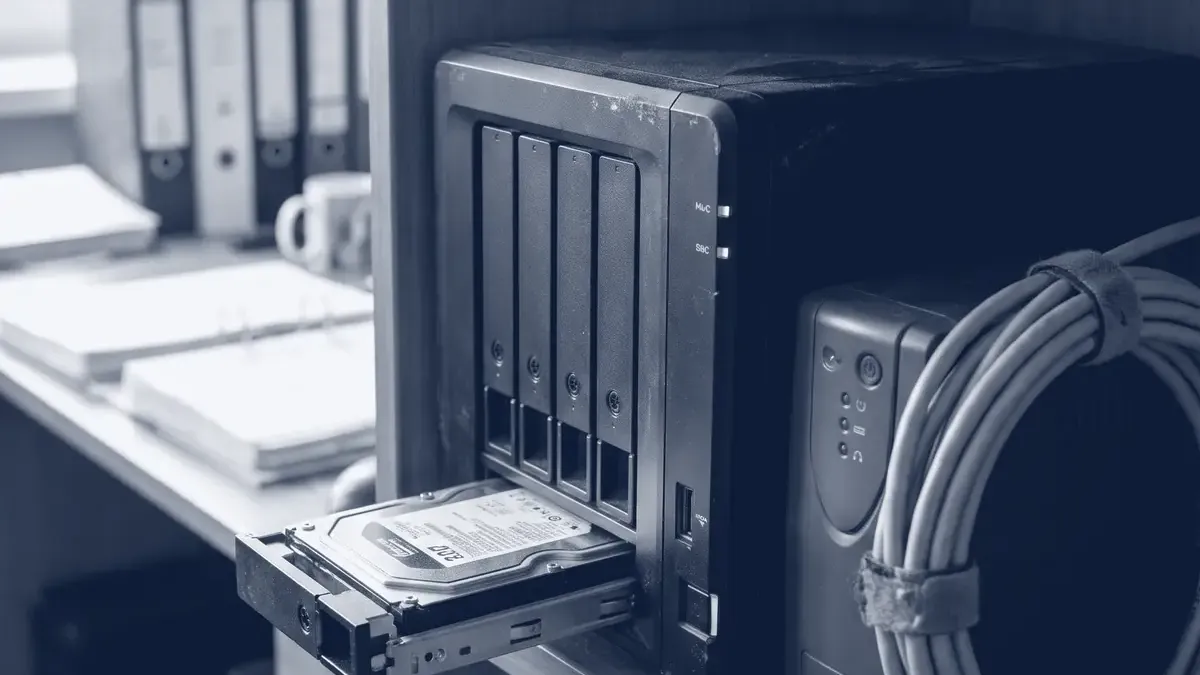
In a smaller office, sooner or later the question comes up: where should the shared documents, the scanned invoices, the drawings or the virtual machine disks go? In many places the answer is a NAS server – a small, standalone box on the shelf that holds disks and shares them over the network. In this article we go through what a NAS is, when it is better than a file server or the cloud, what we use it for in practice, and which settings its security depends on.
What is a NAS?
A NAS (Network Attached Storage) is a storage device connected to the network. It is really a small computer, with a few drive bays, one or more network interfaces and an operating system tailored for storage, which you manage from a browser. Computers don’t see it “as a disk”; they access it through network protocols:
- SMB (Windows shares): used by office PCs, Macs and most scanners.
- NFS: the natural choice for Linux servers and hypervisors.
- iSCSI: the NAS provides a block device over the network, which the client treats and formats as its own disk.
On top of this, the operating system of an off-the-shelf NAS also handles user management, permissions, snapshots, disk monitoring and email alerts.
NAS, file server or cloud?
| Aspect | NAS | File server (general-purpose server) | Cloud storage (Google Drive, OneDrive) |
|---|---|---|---|
| Management | Web interface, little maintenance | A full operating system has to be run | Managed by the provider |
| Cost | One-off price of the device and disks | More expensive hardware, more work | Monthly fee per user |
| Local speed | Network speed (1–10 Gbit/s) | Network speed | Depends on the internet connection |
| Access outside the office | Via VPN | Via VPN | From anywhere |
| Large files, VM disks | Handles them well | Handles them well | Not meant for this |
| Flexibility | Limited to the vendor’s software | Anything can be installed | Limited |
In practice, these don’t exclude one another. In many companies the everyday documents are in the cloud, while the large files, the scanned archive and the virtualisation storage are kept locally, on a NAS.
What do we use a NAS server for in a business?
File sharing. The classic use: folders per department over SMB, with permissions tied to groups. If the company has Active Directory or LDAP, the NAS can be joined to it, so you don’t have to maintain users separately.
Storage for virtualisation. Proxmox VE supports NFS, SMB/CIFS and iSCSI as storage out of the box. Over NFS, Proxmox stores VM disks, ISO images and backups as files; over iSCSI it gets a block device on which you can put LVM. Shared network storage is what makes it possible to move a virtual machine from one node of the cluster to another without downtime. In this case, however, the NAS becomes the critical point of the whole virtualisation setup: if it goes down, every VM stops. We wrote about Proxmox in general in this article, and about the new features of version 8 here.
Backup target. Backups of servers and workstations often go to a NAS. That’s fine, but the NAS shouldn’t be the only place where the backup exists. We will write about backup strategy in a separate article.
Other uses. Camera recordings, a scanner destination folder, an internal software repository or a set of installers.
RAID in a NAS – and what it doesn’t replace
We almost always arrange the disks of a NAS in RAID (or in the vendor’s own solution, such as Synology SHR, or in ZFS), so that the failure of one disk doesn’t cause data loss. But RAID is not a backup: a deleted folder, ransomware or a corrupted file system shows up on every disk immediately, and if the NAS itself burns down or is stolen, the data is gone along with every disk. We explained in detail which RAID level gives what protection, and how much usable space remains, in our article on RAID levels.
How big a NAS do you need?
- Number of drive bays: two disks in a mirror (RAID 1) are enough for a small office; with four or more bays, RAID 6 or RAID 10 also become possible, and you can expand later.
- Capacity: assess your current amount of data, allow for yearly growth, and add the space needed for snapshots. Plan three years ahead, not for today’s state.
- Disks: choose disks designed for NAS use and continuous operation. With high-capacity HDDs, a RAID rebuild can take days, so a level that tolerates two disk failures is recommended there.
- Network: for office file sharing 1 Gbit/s is enough, but for virtualisation storage 10 Gbit/s and a separate storage network (VLAN) are recommended.
- Processor and memory: ZFS and snapshots, encryption and many simultaneous users need more RAM and a stronger CPU than a simple share.
- Power: a UPS that shuts down the NAS properly during a power cut.
Off-the-shelf or self-built?
Off-the-shelf NAS (Synology, QNAP): you switch it on, a wizard guides you through, and the vendor provides updates and applications. The advantage is convenience and a consistent interface; the disadvantage is that you stay within the vendor’s software, and after a while older models no longer receive updates. Synology’s DSM 7.2, released last May, for example, can now take immutable snapshots on supported models, which is very valuable against ransomware.
Self-built (TrueNAS): you install it on your own or second-hand server hardware. TrueNAS CORE is based on FreeBSD and TrueNAS SCALE on Linux, and both use ZFS; the latest major version of SCALE, 23.10 “Cobia”, came out last October. It is more flexible and expandable, but it needs more expertise: choosing the hardware, configuring ZFS and applying updates are all up to you.
For a small office, an off-the-shelf NAS is usually the better choice. If you need it as virtualisation storage or for large capacity, and there is someone to run it, TrueNAS or a suitably equipped server is better value.
Ransomware and NAS
A NAS is a tempting target: all the company’s data is in one place on it, and it often runs outdated software. In January 2022, the DeadBolt ransomware encrypted internet-facing QNAP devices on a mass scale, and QNAP then advised that NAS devices should not be connected directly to the internet. We wrote about the spread of ransomware in an earlier article.
What you should do in any case:
- The management interface should not be reachable from the internet. Turn off UPnP and port forwarding to the NAS on the router, and only use the vendors’ remote access services if you know what they open up. Access it from outside only through a VPN.
- Update regularly – both the NAS operating system and the installed applications. If the model no longer receives updates, replace it.
- A separate administrator account with a strong password and two-factor authentication; disable the built-in
adminaccount. - Scheduled snapshots, immutable if possible, so that an encrypted share can be restored.
- Least privilege: everyone should only see the shares they need, and don’t keep the share used for backups permanently mounted on workstations.
- Monitor the disks and the logs: SMART alerts, failed logins, an unusual number of file changes.
If you are planning a NAS or network storage for your company, or want to connect an existing one to your Proxmox environment, we help with sizing and secure configuration; you can read more about this on the Infrastructure and operations page.